
BUILD INSTALLATION GUIDE
Follow the steps below to properly download, extract, and launch the latest WrapReality build.
Download the WrapReality Build
-
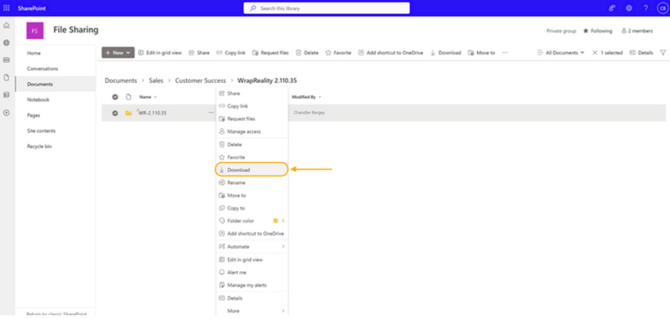
Open the SharePoint link containing the WrapReality build package.
-
Click Download.
-
If a security prompt appears, select Download Anyway
Preparing the ZIP File
If transferring via USB drive:
-
1Copy the entire ZIP folder to your thumb drive.
-
On the new machine, paste the ZIP file into the Downloads folder.
-
Then proceed with the extraction steps below.
If downloading directly to your computer:
-
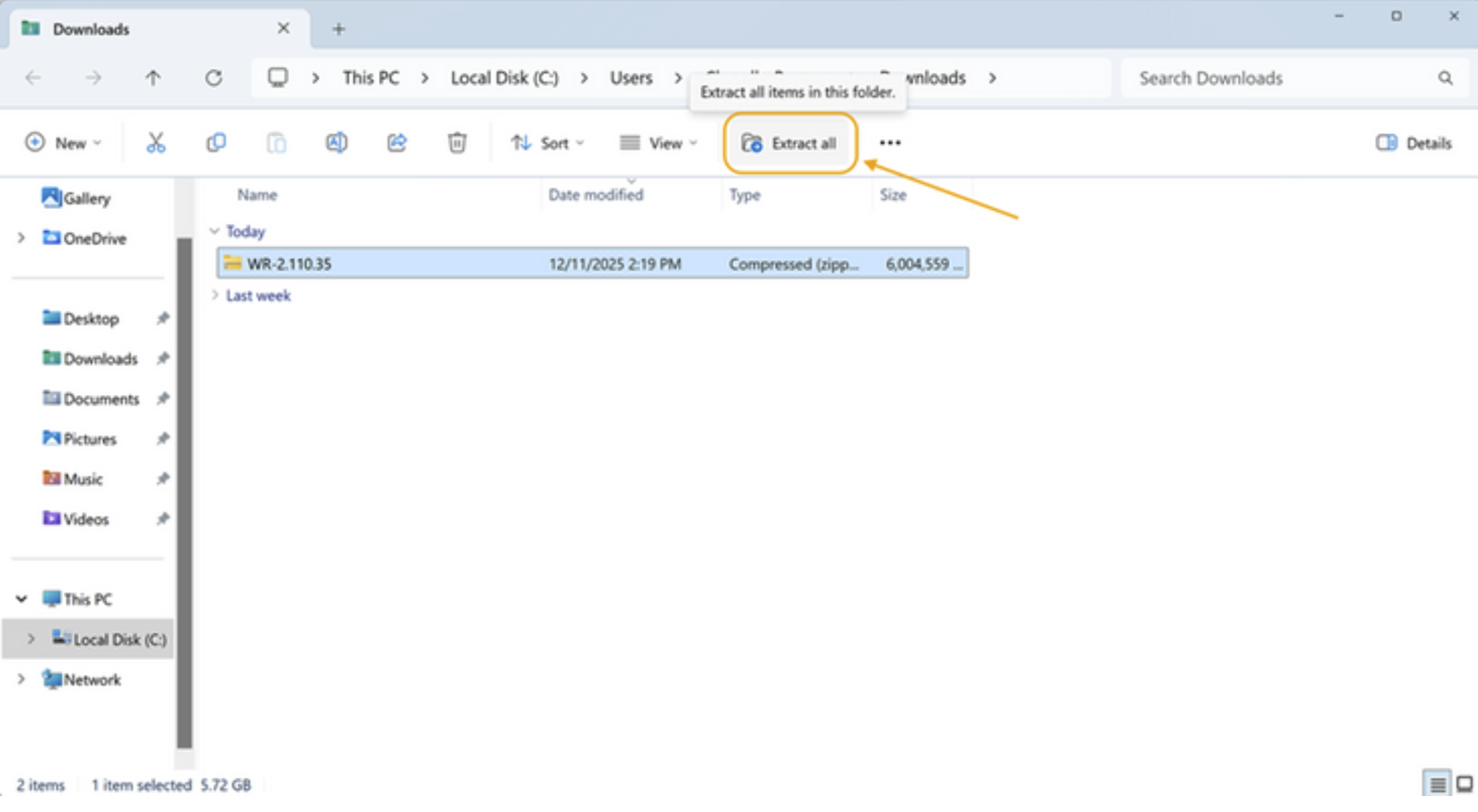
Open your Downloads folder.
-
Locate the downloaded ZIP folder.
Extracting the Build Files
-
Right-click the ZIP folder and select Extract All.
-
Confirm the extraction location is set to Downloads.
-
Click Extract.
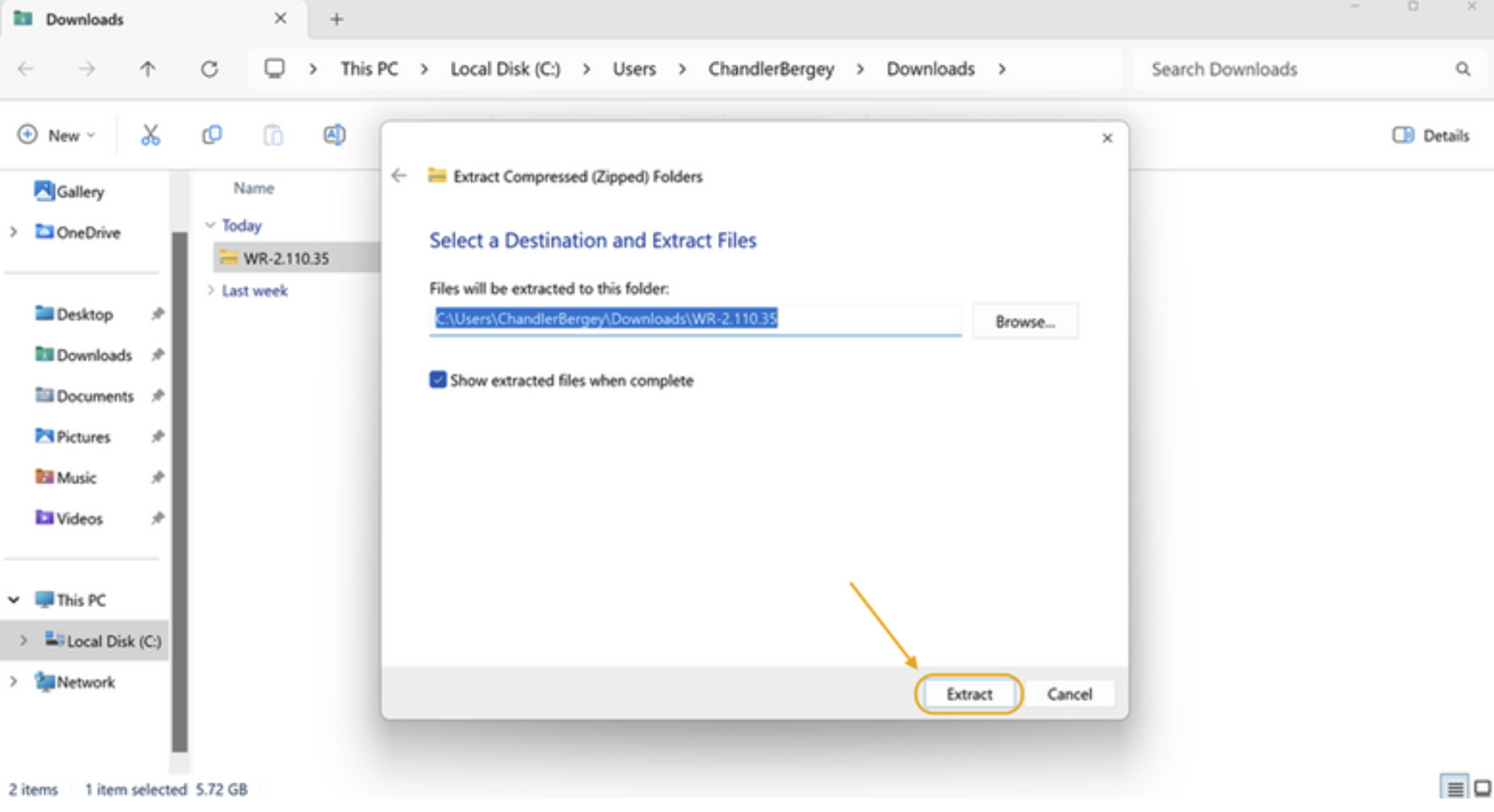
After extraction completes, a new folder will appear in Downloads, titled with the WrapReality build version.
Creating a Desktop Shortcut
Open the file folder. Find the WrapReality icon. Right Click on the icon. Select 'Create Shortcut'
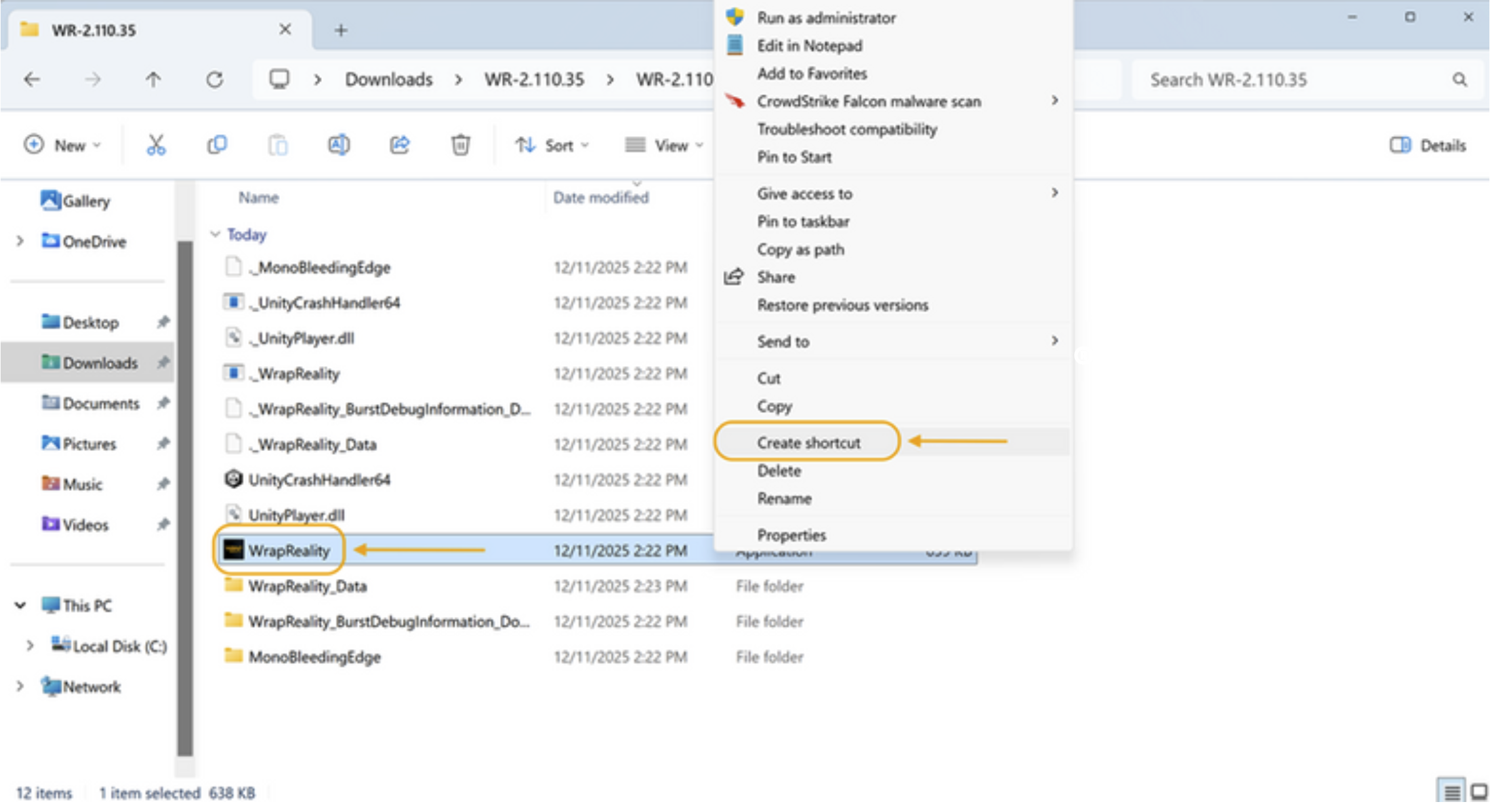
Right Click on the shortcut file. Select 'Rename'. Change file name to 'WrapReality – [build version]”
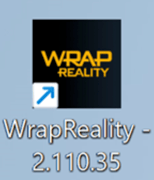
Left Click, hold and drag shortcut over onto Desktop. Minimize open windows if necessary.
Launching WrapReality
If you receive a Windows security message the first time you launch:
-
Click More Info.
-
Select Run Anyway.
WrapReality should now open and run normally.